
✦ What's new
-
New User Management area added under Settings > Enterprise
-
User Management Report - export user details including last login date
-
User Login Audit Report - export a record of every successful login event
Accessing User Management
User Management is available to Enterprise Admins only. It is located under Enterprise settings.
- Go to Settings.
- Select Enterprise.
- Select User Management.
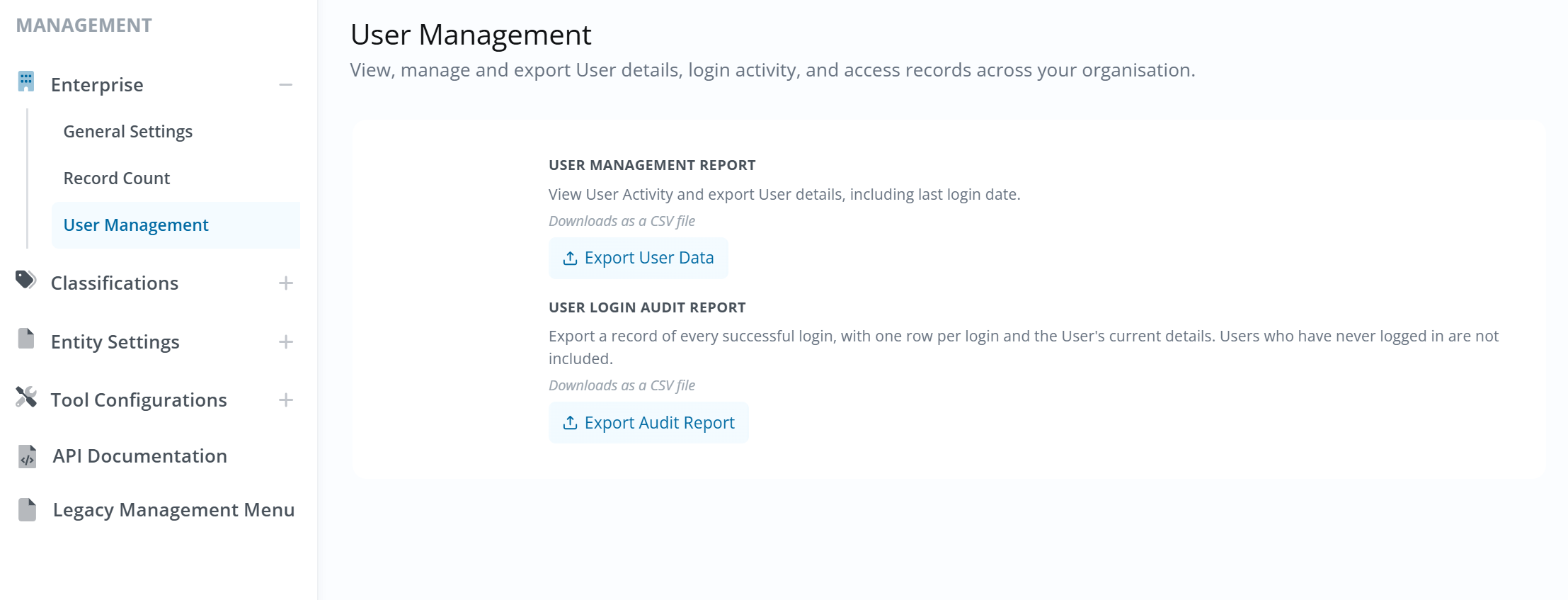
User Management Report
View user activity and export user details, including last login date. Downloads as a CSV file.
- In the User Management area, locate the USER MANAGEMENT REPORT section.
- Click Export User Data.
- A CSV file will download to your device.
What the CSV looks like

The key column to note is Last Login Date — this shows the date and time of the user's most recent login, or Never if the user has not yet logged in. The report also includes standard user detail fields such as name, email, position, department, organisation, and user status.
User Login Audit Report
Export a record of every successful login, with one row per login and the user's current details. Users who have never logged in are not included. Downloads as a CSV file.
- In the User Management area, locate the USER LOGIN AUDIT REPORT section.
- Click Export Audit Report.
- A CSV file will download to your device.
What the CSV looks like
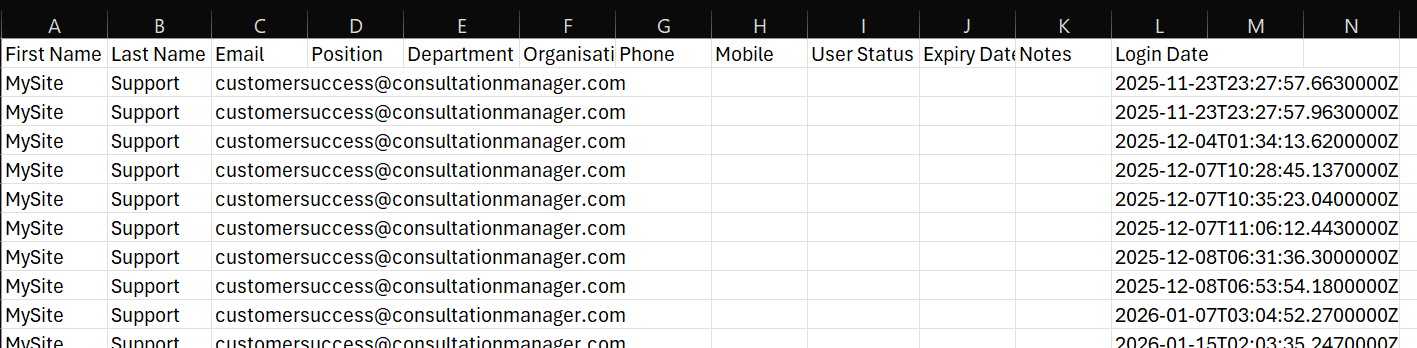
Each row represents one successful login event. The key column is Login Date — this records the exact date and time of each login. User detail fields (name, email, position, etc.) reflect the user's current information at the time of export, not at the time of login.
NOTE: Users who have never logged in are not included in this report.