
System Role: Standard User
Team Role: Contributor
Our Outlook Add-in is designed to seamlessly integrate your email workflow with Open Point, making it easy to capture, review, and manage stakeholder communications. To help cover our recommended workflow when using our Add-in, this article has been broken into the following sections:
- Getting Started
- Navigating the Add-in
- Sending your Email to Open Point
- Creating a New Stakeholder through the Add-in
- Next Steps
This article does not cover how to install the Add-in to your Outlook, however if you need help with this step please see our other knowledge base article here.
🆕 What's new:
- Shared mailboxes and shared folders: Use the add-in with shared mailboxes and shared folders.
- More reliable sign-in: An intermittent "Failed to login" error when connecting has been fixed.
- Fewer duplicate profiles: Extra spaces around an email address no longer create a duplicate profile.
- Updated branding: The add-in uses Open Point branding.
Getting Started
The first step following installation is to log in to Open Point through the Add-in. To do this, select the add-in menu when viewing an email in your Inbox/Sent folder or in a shared mailbox or shared folder, and then select your Open Point Add-in: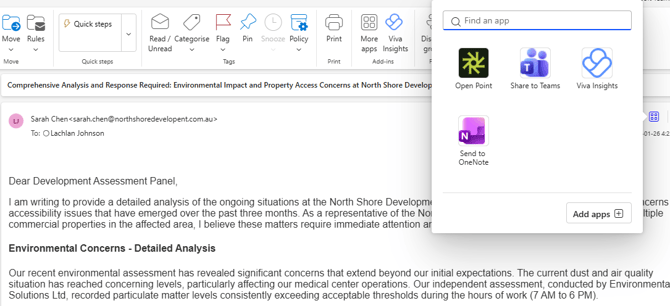
Once selected, you will be prompted to enter the URL for the Open Point system you would like to connect to.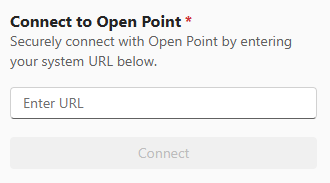
Tip: The best way to do this is to simply copy and paste your system URL from your web browser, noting that it should match one of the following structures detailed below (based on your region) whereby [systemprefix] should be replaced by your Open Point prefix.
- For Australian & New Zealand clients:
https://[systemprefix].consultationmanager-preview.com - For North American clients:
https://[systemprefix].consultationmanager.com - For Canadian clients:
https://[systemprefix].consultationmanager-preview.ca
Once the system has successfully connected a login window will display, from here you should use your standard Open Point login to authenticate.
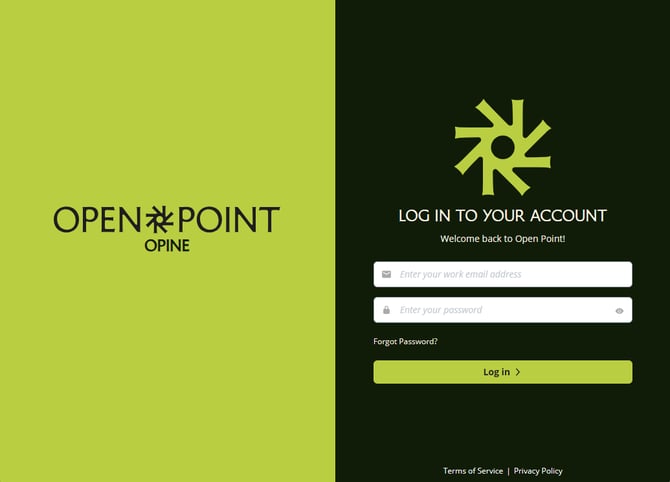
Note: If Single Sign-on is configured for the system you will be required to authenticate through your connected SSO provider.
Navigating the Add-in
Upon first login, you will be presented with a brief walkthrough covering the core parts of the Add-in which is organized into 3 sections:
Event
Allows you to assign the project/s and update the summary of the email prior to sending it into Open Point, this is also where you can elect to include BCC'ed recipients as related Stakeholders when sent to Open Point.
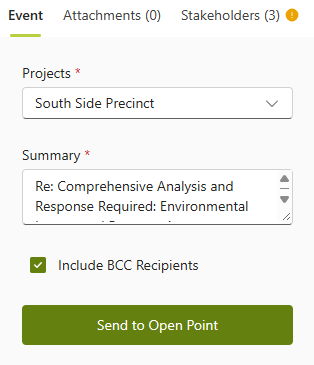
- Projects: Use the Project selector to choose which Project/s your email should be related to when sent to Open Point.
- Summary: Will prepopulate with your email Subject Line, however, can be changed to include any other point you want to include in your Event summary when sent to Open Point.
- Include BCC Recipients: Used to flag whether you would like to include BCC recipients from your email as included Stakeholders to be associated to the Event when sent to Open Point.
Attachments
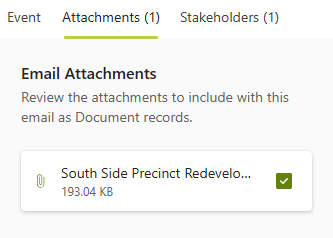
Allows you to review all email attachments currently included on the email, including the ability to uncheck any you do not wish to send into Open Point.
Stakeholders
Lists recipients included in your email which have been matched to a Stakeholder Profile in Open Point, alongside highlighting any recipient emails which have no match for further review.
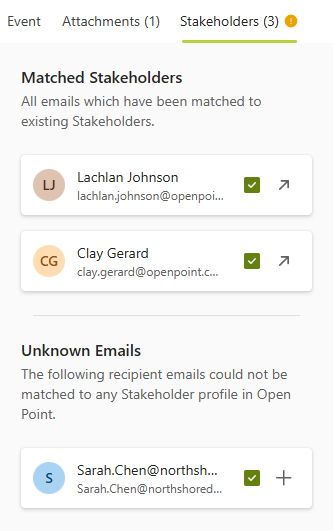
- Matched Stakeholders: This section lists all Stakeholder profiles which have been matched using all email addresses present on the email. (This may include multiple Stakeholder profiles for single emails in circumstances where duplicate profiles exist in Open Point). You can uncheck any profiles you do not wish to include as related Stakeholders when sent to Open Point here.
- Profile Clickthrough: An option to clickthrough to the matched Stakeholder Profile is available for each matched profile, when selected it will open the Stakeholder profile in Open Point.
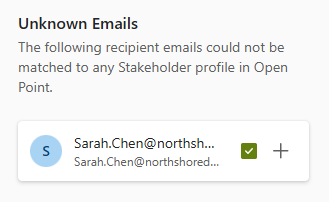
- Unknown Emails: An email address which could not be matched to existing Stakeholder Profiles will be shown under the Unknown Emails section, selecting the + icon allows you to create a basic Stakeholder Profile through the Add-in before sending as detailed below.
Alternatively, should you leave any Unknown Email checked, a new profile will be created in Open Point when sent in, using just the email address provided.
Note: Only Stakeholder Profiles within your User view will be matched to, should Private Stakeholders exist outside your view within your Open Point system, they will not be matched to when the email is sent in.
Sending your Email to Open Point
Once all content has been reviewed and an associated Project selected the Send to Open Point button on the Event tab will become active. On select this will send the email through to Open Point, and provide a confirmation screen.
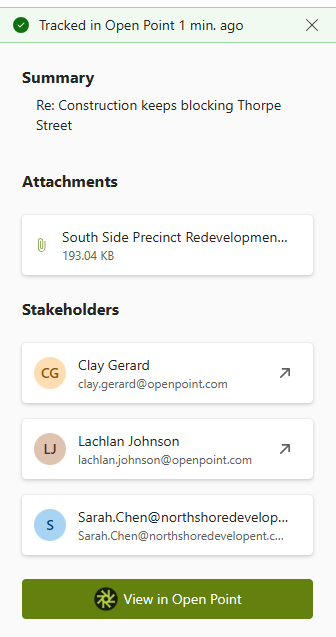
- Tracking Notification: Provides a breakdown of when this email was sent into Open Point, helpful when reviewing emails previously sent in.
- Summary: Provides the Summary used when the email was sent into Open Point.
- Attachments: Lists all attachments which were included and will have been created as Document records and related in Open Point.
- Stakeholders: Lists all Stakeholders which were included and will have been related to the Event in Open Point.
- View in Open Point: Provides a link to either the created Event or Email Inbox depending on whether the email has been processed in Open Point yet.
Creating a New Stakeholder through the Add-in
When reviewing your email content within our Add-in should we be unable to match a recipient included in your email with an existing Stakeholder profile in Open Point these emails will be listed under the Unknown Emails section.

Note: A yellow exclamation mark will appear next to the Stakeholder tab show any Unknown Emails exist.
For any Unknown Email clicking the + icon next to the email card will begin the Stakeholder creation process.
On select, a panel will display to add the new Stakeholder to Open Point, any required fields from your system will be marked with a red asterisk. Some of the fields may use a different name dependent on any field renames in your Open Point system.
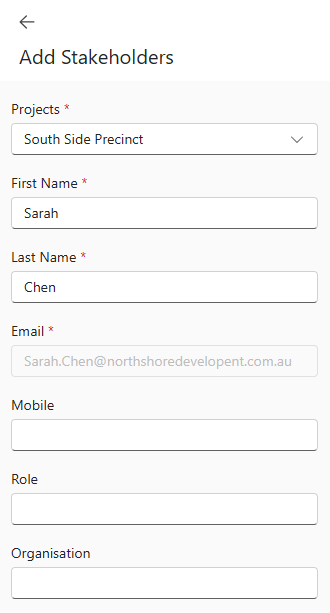
Once all required fields have been completed, select the Create button to add your new Stakeholder directly into Open Point.
⏭ Next Steps
Once your email has been sent into Open Point, check out our Email Inbox article covering the Email Inbox for more detail around processing your emails into Events.
An additional Outlook Add-in FAQs article is also available covering some more specific aspects of the Add-in if required.
Related articles
→ Installing the Open Point Outlook Add-in