Required Minimum System Role: Standard User
There is no direct export option on a Distribution List's Recipient List page. To export a list of recipients, for example to feed into an external communications platform, use a Tabular Report instead. This also lets you export recipients across multiple lists at once, or sort and filter recipients in Excel.
Exporting recipients via a Tabular Report
- Go to Reports.
- Select Create Report.
- Choose Tabular as the report type.
- Select Stakeholders as the Primaryu entity.
- In the search criteria, select Distribution Lists from the dropdown, then click New Search.
- Choose your filter:
- Select Is Not Blank to export recipients across all Distribution Lists. This is useful if you want to sort by list afterwards in Excel.
- Select Contains and enter a list name to export recipients from one specific Distribution List.
- Add the following fields to your report: ID, First Name, Last Name, Email, and Distribution List. Include Mobile as well if you need the recipient list for SMS.
- Click Generate Report.
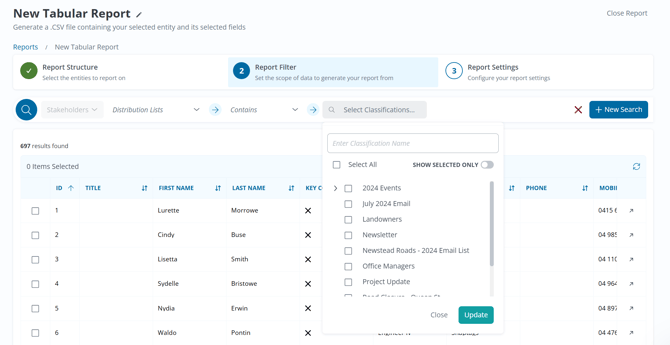
NOTE: Since a recipient can belong to more than one Distribution List, using Is Not Blank will return one row per recipient per list. If a recipient is on three lists, they will appear three times, once for each list. Sort or filter by the Distribution List column in Excel to isolate a single list.
Exporting Distribution List opt-outs:
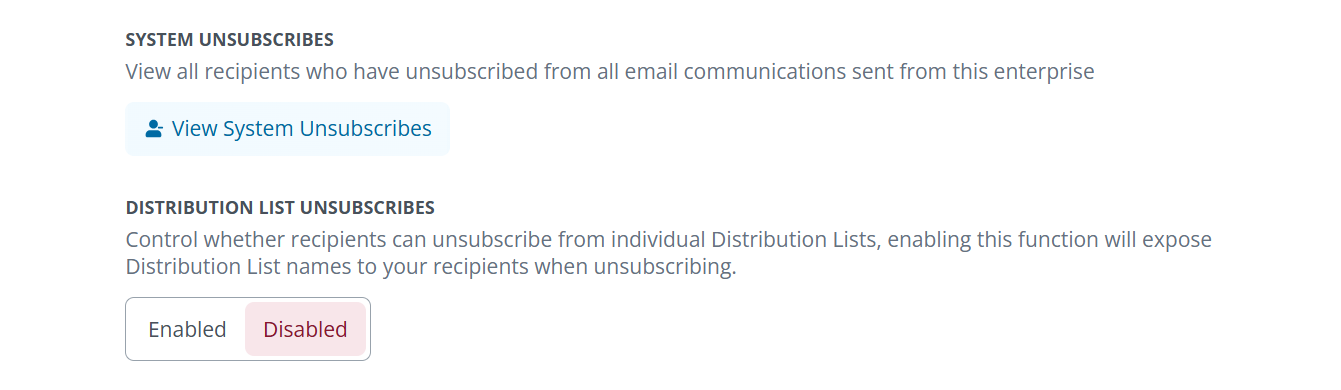
Recipients who have unsubscribed are not included in the Distribution List Recipient List and are exported separately.
- Go to Enterprise Management Settings.
- Select Tool Configurations.
- Select Communications.
- Select View System Unsubscribes.