
🆕What's New
-
Discover a more refined Stakeholder Profile with a cleaner layout, better organization, and an improved way to navigate key information.
-
Discover the new Timeline tab, designed to give you a clearer, more organized view of activities and interactions in one place.
- Some related record fields that were previously editable directly within tables are now updated through the side panel for a more streamlined editing experience.
The Stakeholder Profile page is divided into clearly defined sections to help you easily view and manage information:
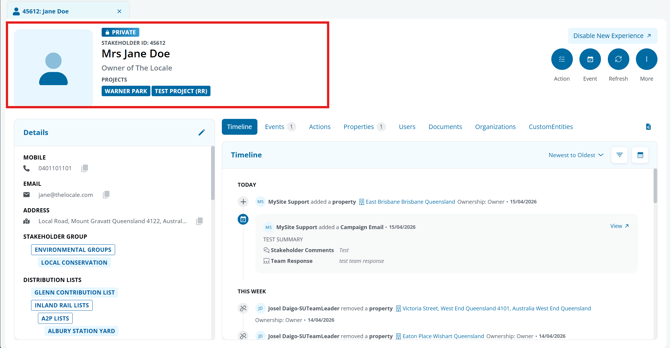
1. Profile Header
The Profile Header gives you a quick summary of the key details, providing clear visibility into key information and project associations. This includes:
- Privacy status
- Stakeholder ID
- Name
- Role
- Organisation
- Linked projects
This helps you quickly review key details and associated projects at a glance.
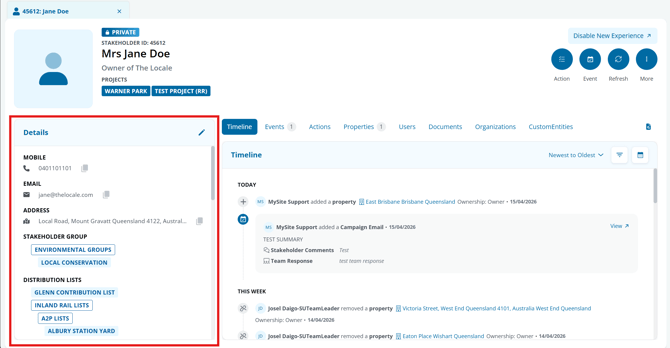
2. Details Section
The Details Section captures additional information not included in the Profile Header, with a clear and structured layout for easy scanning. This includes:
- Preferred name
- Contact details
- Address
- Stakeholder group
- Distribution lists
- Other profile fields
Please note: Fields in this section follow a consistent layout and cannot be rearranged.
3. Relationships Tables
The Relationships section presents related records in a horizontal tab layout, making them easier to scan and navigate compared with the previous vertical view. This includes:
- Timeline: This tab shows all engagement activities in chronological order, making it easy to track interactions over time.
- Events
- Actions
- Properties
- Users
- Documents
- Organizations
- Custom entities
- Audit History: The Audit History is now accessed via a button, as indicated by the red arrow.
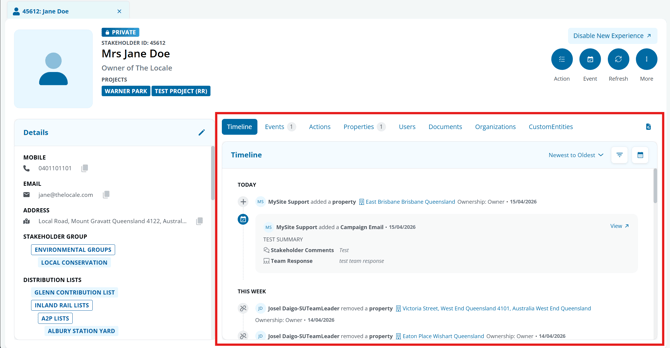
💡Note: The tabs available depend on your site's entity configuration.
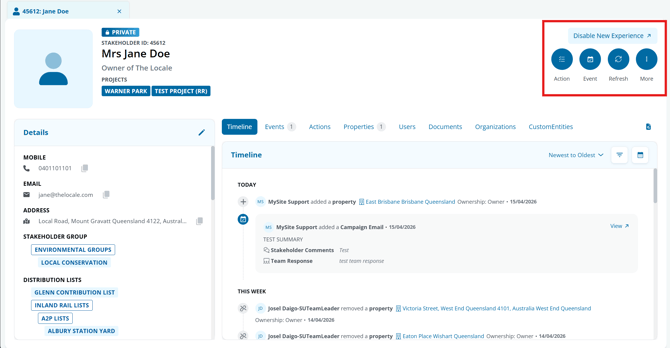
4. Quick Actions
The Quick Action buttons provide access to key tasks, allowing you to perform actions directly from the StakeholderProfile. These include:
- Adding an action
- Adding an event
- Refreshing the record
- Opening more options
Please note: The “Disable New Experience” button will be available for a limited time (until 31 January 2027). This option allows you to temporarily switch back to the legacy Stakeholder Profile view.
⚙️Managing Records
1. How to Edit Profile Details
To edit profile details, click the pencil icon in the Details section. This will open a side panel where you can review and update the information. Once you’ve made your changes, click Save to apply them.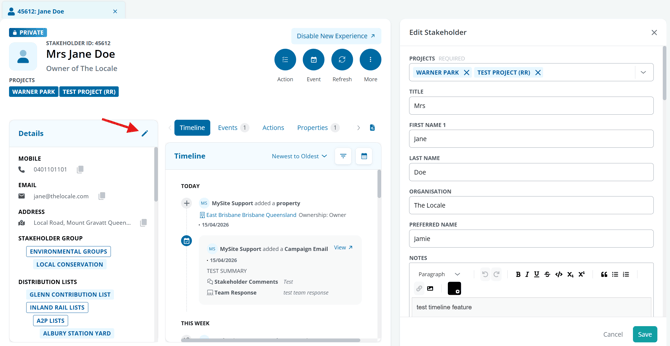
2. How to Manage Related Records from the Stakeholder Profile
Each relationship tab includes options to Search, Bulk Assign, Bulk Unassign, and Create or Relate, accessible through icons within the tab.
To edit a record, click the three-dot icon (⋮) on the selected item. This will open a side panel on the right-hand side of the profile, where you can view and update details for the related entity. Clicking a related entity will also open this side panel, allowing you to edit its details. Note that this panel displays information for the related record, not the Stakeholder Profile.
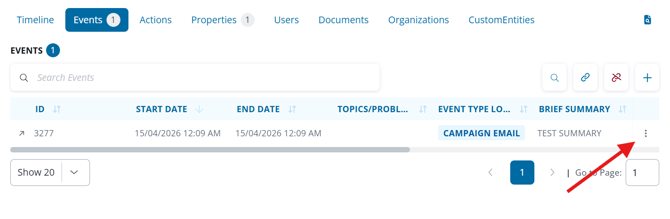
A number appears next to each tab, indicating how many records are included for that entity.
3. Update Property Relationship Fields
When associating a property with a profile, you were previously able to establish the relationship and edit the related fields directly within the cells of the Properties table. With the updated Stakeholder Profile, these fields are no longer editable from the table view. Instead, updates can be made through the side panel when editing the property record associated property record.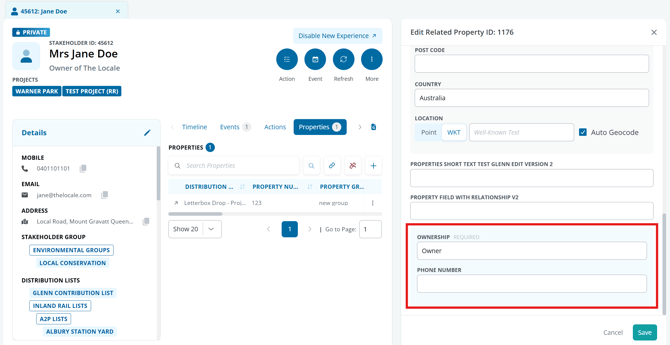
4. How to Assign and Unassign in the New Modal
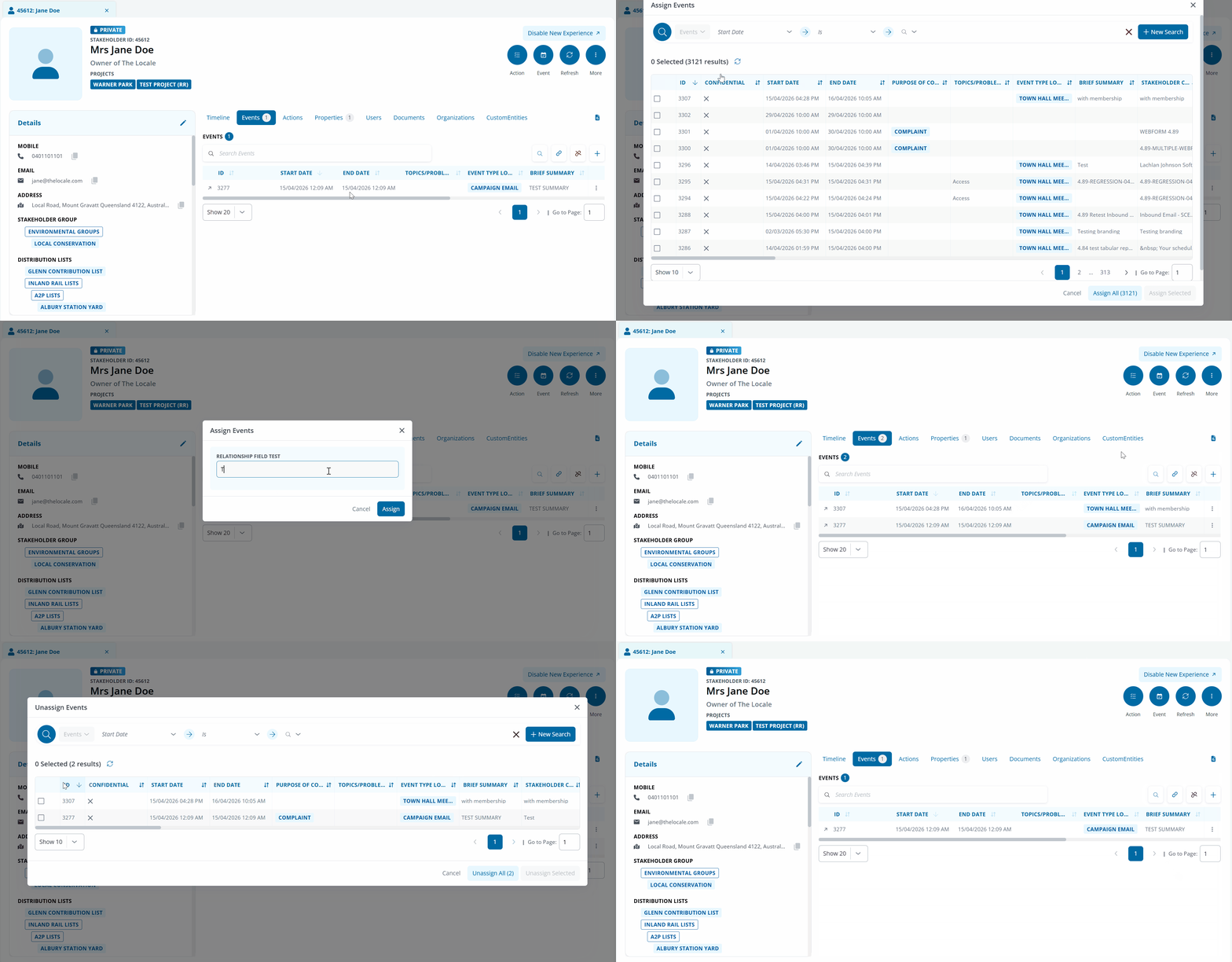
In the updated Stakeholder Profile, the options to assign and unassign records are now separated into individual buttons. This makes it easier to see exactly which action you’re taking, rather than having both options grouped together as in the previous version.
To assign or unassign records, simply click the relevant icon. Each button includes a tooltip to help you quickly identify its function.
- Bulk Assign: Opens a window where you can search for and select one or more records, such as events, to assign.
- Unassign: Shows all currently related records, allowing you to remove them individually or in bulk.
This update makes managing relationship fields more straightforward and easier to use.
5. How to Switch Back to the Legacy Stakeholder Profile
To switch back to the Legacy Stakeholder Profile, click Disable New Experience. This will take you to the legacy vie . To learn more about the legacy experience, refer to: Stakeholder Profile Legacy Version