
Required Role: Enterprise Admin or Team Leader on the Open Point project
After you connect Social Point and Open Point and map stakeholder fields, you choose what flows between them. You link Social Point projects to an Open Point project, turn on the tools you want to send, and map each tool’s fields to event fields so every answer lands in the right place on the event. Once that’s done, new feedback usually appears in Open Point within moments, so your team can see and act on it as it comes in.
If you haven’t connected Social Point yet, start with SP x OP Connector.
How Linking Works
You set up the flow of data at three levels:
- Project: Link one or more Social Point projects to an Open Point project.
- Tool: Turn on each Social Point tool, such as a quick poll or a form, that you want to send to that project.
- Field: Map each tool's fields to the fields on your Open Point events.
A Team Leader on the Open Point project does all three from that project. Open Point only receives submissions made after a tool is turned on. Earlier submissions aren't added.
Please note: Only tools that are set up and published in Social Point appear. A tool that is turned off is ignored, and no events are created from it.
Link a Social Point project
- In Open Point, go to Search and open the project.
- Select the Social Point Integration tab. If nothing is linked yet, a prompt invites you to link your first project.
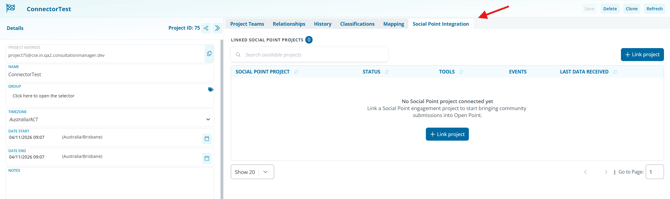
- Select Link project. A list of the Social Point projects available to link appears. You can also search for the specific project you would like to connect .
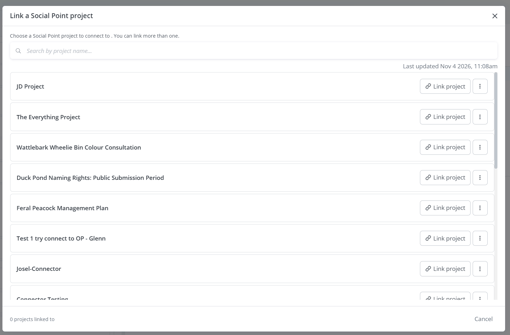
- Select the Social Point project you want to link. Open Point fetches the tools set up and published in that project.
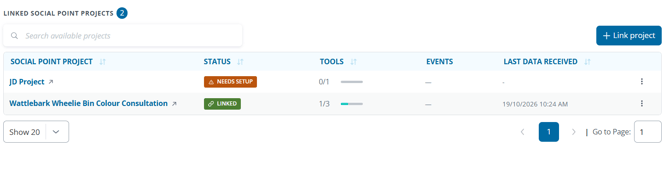
The table on the Social Point Integration tab lists each Social Point project you’ve linked to this Open Point project:
| Column | What it shows |
|---|---|
| Social Point project | The name of each linked Social Point project. |
| Status | Whether the project is Linked, No Tools Found or Needs setup. |
| Tools | How many of the project’s tools are turned on, for example, 2/3. |
| Events | How many events the project has created in Open Point. |
| Last data received | The last time Open Point received data from the project. |
You can link more than one Social Point project to a single Open Point project. For example, you might link separate projects for planning, construction, and maintenance, so all the feedback is in one place in Open Point.
If a project was linked by mistake
You can disconnect the link. Events and stakeholder profiles already created from that link stay in Open Point, and nothing is deleted.
Turn On Tools
When you link a project, Open Point lists its tools in the Tool Mapping window. Each tool shows its type, how many of its fields are mapped, and a switch. You can either set this up immediately after linking the project or afterwards by selecting the more options (⋮) > Configure.
- Turn on the tools you want to send to Open Point. A tool that is turned on shows Linked, and one that is turned off shows Off.
- Select Configure fields beside a tool to map its fields. See the next section.
- Check the summary at the bottom left side, which shows how many tools will sync to Open Point.
- Select Save changes.
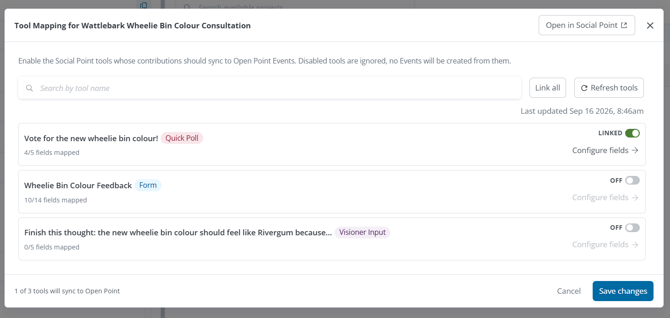
- Link all: Turns on every tool in the project.
- Refresh tools: Fetches the latest list of tools from Social Point.
- Open in Social Point: Opens the project in Social Point. You need to be signed in to Social Point to be able to view the project.
Mapping Tool Fields to Event Fields
After you turn on a tool, you map its fields by matching Social Point fields to fields on your Open Point events (called interactions in some systems), in a similar way to stakeholder mapping. You only need to map what’s important, not everything, and you map each question separately, as there’s no option to select or map all questions at once. Tool mapping is global, so the mapping you set up for a tool applies to all linked projects.
- Select Configure fields beside a tool. The Field Mapping window opens.
- For each Social Point field you want to use, choose an Open Point field from the list. For example, map Date Submitted to the event start date.
- To show the tool name on the event, map Tool Name to a field such as Summary.
- Use the search box to find a field by its Social Point or Open Point name.
- Select Save changes. Select Back to tools to return to the tool list.
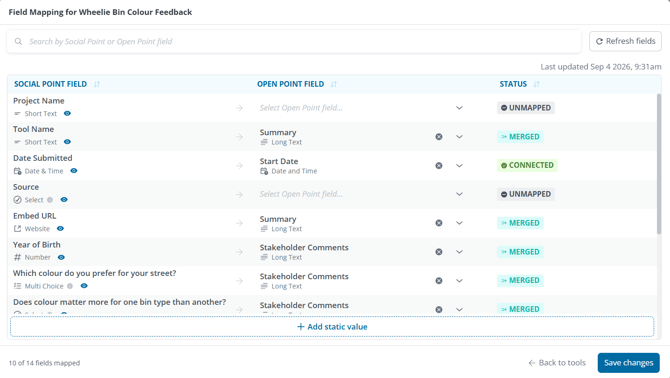
- Status: Each field has a status that shows how it’s mapped:
| Status | What it means |
|---|---|
| Connected | The field is mapped to its own Open Point field. |
| Merged | The field shares an Open Point field with other questions. |
| Unmapped | The field isn’t mapped to an Open Point field yet. |
- Summary: A count at the bottom shows how many fields are mapped, for example 7 of 13.
- Refresh fields: Gets the latest fields from Social Point.
💡 Tip: Get more from your mapped fields
- Combine questions to keep events tidy: Map several Social Point questions to the same Open Point field, such as Summary. Open Point joins the answers in Social Point order, each as the question followed by the answer. One field then holds a whole set of responses, instead of needing a field for every question.
- Map multiple-choice answers to a classification: If a question asks, for example, for someone’s preferred contact method, create a classification in Open Point with the same options, then map the question to it. Classifications are controlled data, so every answer is recorded the same way, and you can search and report on them reliably.
- Avoid adding lots of custom fields: Each new field adds to the event screen and can make it busy, so we recommend not creating many just for one form. Questions you leave unmapped aren’t lost, because every answer stays available in Social Point.
Find Events Created from Social Point Submissions
- In Open Point, go to Search and open your events.
- Look for events with the event type Social Point Feedback.
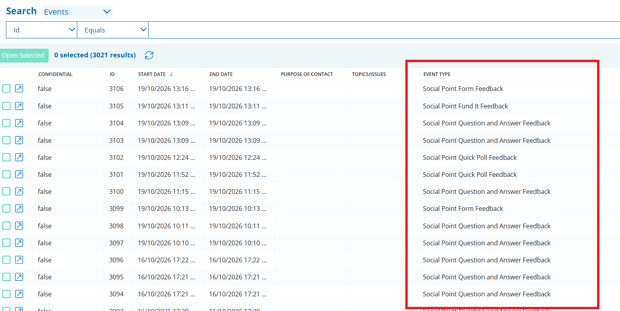
- Open an event to see the mapped fields and the stakeholder profile connected to it.
- Select View in Social Point, at the top right, to open the feedback list for that tool in Social Point. You need to sign in to Social Point.
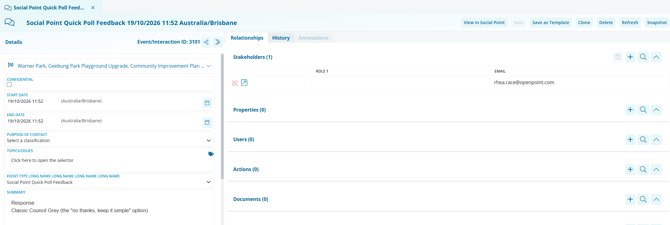
Open Point doesn't show a preview of the full submission. Social Point is the source of truth for the whole response, so use View in Social Point to see it.
Events and stakeholder profiles created by the connector show Social Point Integration as the source in the audit history, so they're easy to find.
Connector Errors
The Connector Errors section in the integration settings lists problems with the connection. At the moment, it shows errors when field mapping changes. For example, if you rename or delete an Open Point field that you've mapped, such as First Name, that field stops mapping correctly and a connector error appears. To fix it, update the mapping.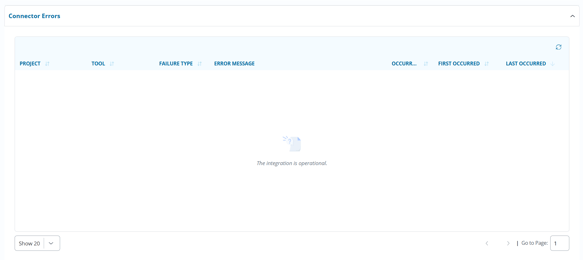
Related articles